
The Roar and the Radiator: A Deep Dive into Gaming Laptop Fan Noise and Heat Management
The allure of a gaming laptop is undeniable: a portable powerhouse capable of delivering immersive, high-fidelity gaming experiences anywhere. Yet, beneath the sleek chassis and vibrant RGB lighting lies a constant battle against the twin demons of heat and noise. For many enthusiasts, the symphony of whirring fans and the scorching touch of a keyboard deck are as much a part of the gaming laptop experience as stunning graphics. This article delves deep into the intricate world of gaming laptop fan noise and heat management, exploring why these issues arise, their impact on performance and user experience, the technologies employed to mitigate them, and practical strategies for users to tame the beast within their machines.
The Inherent Challenge: Why Gaming Laptops Get Hot and Loud
At its core, the problem of heat and noise in gaming laptops stems from a fundamental conflict: cramming desktop-level performance components into a thin, portable enclosure. Modern CPUs and GPUs, especially the high-end variants favored by gamers, are incredibly powerful but also incredibly power-hungry. This power consumption directly translates into heat generation.
- High-Performance Components: The latest Intel Core i9 or AMD Ryzen 9 processors and NVIDIA GeForce RTX or AMD Radeon RX graphics cards can draw hundreds of watts combined. This energy is converted into computational work, but a significant portion is inevitably lost as heat, primarily through the transistors.
- Compact Chassis Design: Unlike desktop PCs with cavernous cases and multiple large fans, gaming laptops have extremely limited internal volume. This dictates smaller heatsinks, fewer and shorter heat pipes, and smaller, higher-RPM fans. The thinner the laptop, the more pronounced this limitation becomes.
- Restricted Airflow: The small vents and tightly packed internal components make it challenging to move enough cool air in and hot air out efficiently. Dust accumulation over time further exacerbates this problem, insulating components and blocking airflow pathways.
- Power Delivery System: Not just the CPU and GPU, but also the Voltage Regulator Modules (VRMs) that supply power to these components generate heat. While often overlooked, inadequate cooling for VRMs can lead to instability and throttling, even if the primary components are relatively cool.
This intricate dance between raw power and constrained space inevitably leads to elevated temperatures and the need for aggressive cooling, which manifests as increased fan noise. It’s a delicate balance, a performance triangle where power, thermals, and acoustics constantly push and pull against each other.
The Impact: Performance Degradation and User Annoyance
The consequences of unmanaged heat and excessive fan noise extend beyond mere discomfort; they directly impair the gaming experience and can even shorten the lifespan of your valuable hardware.
The Scourge of Heat: Thermal Throttling
When components reach a predetermined temperature threshold (often around 90-100°C for CPUs and 80-90°C for GPUs), they initiate a process called thermal throttling. This is a self-preservation mechanism where the component reduces its clock speed and voltage to lower heat output. While crucial for preventing permanent damage, it leads to:
- Performance Drops: Frame rates plummet, stuttering occurs, and the overall responsiveness of the game suffers. A powerful laptop might perform worse than a less powerful one if the latter can sustain its boost clocks for longer.
- Reduced Component Lifespan: While modern components are designed to withstand high temperatures, sustained exposure to extreme heat can accelerate degradation of materials, potentially leading to earlier component failure.
- Physical Discomfort: A hot keyboard deck, palm rest, or even the underside of the laptop can make prolonged gaming sessions uncomfortable, especially if the laptop is used on one’s lap.
- System Instability: In extreme cases, overheating can lead to system crashes, blue screens of death (BSODs), or unexpected shutdowns.
The Symphony of Annoyance: Fan Noise
While less immediately damaging than heat, excessive fan noise is a significant detractor from the user experience:
- Immersion Breaking: The constant whirring, humming, or even high-pitched whine can shatter the illusion of a game, pulling the player out of the virtual world.
- Distraction and Fatigue: For the user and anyone nearby, persistent loud noise can be distracting and mentally fatiguing, especially during long gaming sessions or when trying to focus.
- Impact on Communication: For streamers or gamers using voice chat, loud fan noise can bleed into microphones, making communication difficult and unprofessional.
- Social Implications: Using a loud gaming laptop in a quiet environment (e.g., a library, coffee shop, or shared living space) can be disruptive and inconsiderate.
Hardware-Level Solutions: The Manufacturer’s Arsenal
Gaming laptop manufacturers employ a range of sophisticated hardware solutions to manage heat and noise, constantly innovating to strike a better balance.
-
Advanced Cooling Systems:
- Heat Pipes: These sealed copper tubes contain a working fluid that evaporates at the hot end (connected to the CPU/GPU die) and travels to the cooler end, where it condenses, releasing heat. The condensed fluid then returns to the hot end via a wick structure. More heat pipes, thicker pipes, and direct contact with the dies improve efficiency.
- Vapor Chambers: A more advanced form of heat pipe, a vapor chamber is a flat, sealed copper enclosure with a vacuum inside. The entire bottom surface acts as an evaporator, rapidly spreading heat across a larger area before transferring it to fins. Vapor chambers are significantly more efficient at heat spreading than traditional heat pipes but are also more expensive and complex to integrate. They are increasingly found in premium gaming laptops.
- Fans:
- Axial Fans: The most common type, these fans pull air in parallel to the motor shaft and expel it perpendicular to the shaft. Gaming laptops often use multiple axial fans (two or three) with high blade counts (e.g., 70+ blades per fan) and thin, aerodynamically shaped blades to maximize airflow while minimizing turbulence and noise.
- Blower Fans: Less common in modern gaming laptops, these fans draw air in from one side and expel it in a concentrated stream from another. They are effective for pushing air through dense fin stacks but can be noisier and less efficient at moving large volumes of air than axial fans.
- Heatsink Fins: The density and surface area of the aluminum or copper fins attached to the heat pipes are crucial. Larger surface areas allow for more efficient heat dissipation into the airflow.
- Thermal Interface Material (TIM): The material applied between the CPU/GPU die and the heatsink.
- Thermal Paste: The most common TIM, it fills microscopic gaps to improve heat transfer. Quality varies greatly.
- Liquid Metal: A highly conductive alloy (usually gallium-based) that offers significantly better thermal conductivity than traditional thermal paste. It’s more expensive, difficult to apply (electrically conductive, so spills can short components), and requires careful application, often factory-applied in high-end models.
-
Chassis and Vent Design:
- Strategic Vent Placement: Manufacturers design intake and exhaust vents to maximize airflow, often utilizing the bottom panel for intake and the rear and sides for exhaust.
- Elevated Design: Some laptops incorporate "feet" or hinge designs that lift the chassis slightly off the surface, creating a larger gap for air intake.
- Material Selection: Chassis materials like aluminum and magnesium alloys are not only durable but also help dissipate heat passively from the laptop’s surface.
Software-Level Management: User Empowerment and OEM Control
While hardware lays the foundation, software provides the dynamic control necessary to manage thermals and acoustics based on workload and user preference.
-
OEM Control Centers: Almost every gaming laptop brand provides proprietary software (e.g., ASUS Armoury Crate, MSI Dragon Center, Alienware Command Center, Lenovo Legion Vantage). These tools are indispensable for:
- Performance Profiles: Offering presets like "Silent," "Balanced," "Performance," and "Turbo/Overclock." These profiles adjust CPU/GPU power limits (TGP/TDP), fan curves, and sometimes even display settings.
- Custom Fan Curves: Advanced users can create their own fan speed profiles based on temperature thresholds, allowing for a fine-tuned balance between cooling and noise.
- Power Limits (TDP/TGP): These settings dictate the maximum power the CPU (Thermal Design Power) and GPU (Total Graphics Power) can draw. Lowering these limits reduces heat and noise at the expense of peak performance.
-
Undervolting: This technique involves reducing the voltage supplied to the CPU or GPU without decreasing its clock speed. Since heat generation is proportional to voltage squared, even a small voltage reduction can lead to significant temperature drops and lower power consumption, allowing components to run cooler and quieter while maintaining performance.
- CPU Undervolting: Tools like Intel XTU (Extreme Tuning Utility) or Throttlestop are commonly used for Intel CPUs. AMD’s Ryzen Master offers similar capabilities for their processors.
- GPU Undervolting: MSI Afterburner is the most popular tool for both NVIDIA and AMD GPUs, allowing users to create custom voltage/frequency curves.
- Caution: Undervolting requires patience and testing, as excessive reduction can lead to system instability and crashes. Start with small increments and test thoroughly.
-
Frame Rate Limiting: Limiting the in-game frame rate to match your display’s refresh rate (e.g., 60fps, 120fps, 144fps) or a comfortable minimum (e.g., 60fps for a 144Hz display if the game is very demanding) can significantly reduce the load on the GPU. A GPU running at 99% utilization to produce 180fps will generate more heat than one running at 70% utilization to produce 120fps.
-
Driver Optimization: Keeping GPU drivers (NVIDIA GeForce Experience, AMD Radeon Software) up-to-date often includes performance and thermal optimizations from the manufacturers.
User-Level Best Practices and Accessories
Beyond the manufacturer’s design and software tweaks, users can adopt several practices and utilize accessories to further improve thermal management and reduce noise.
-
Optimal Environment:
- Elevate the Laptop: Never place your gaming laptop directly on a soft surface like a bed, carpet, or blanket, as this will block crucial intake vents. Use a laptop stand, a book, or any object that creates a gap beneath the laptop for unimpeded airflow.
- Clean Surface: Ensure the surface the laptop rests on is clean and free of debris that could be drawn into the fans.
- Room Temperature: A cooler ambient room temperature naturally aids in cooling.
-
Regular Maintenance:
- Dust Removal: Over time, dust, pet hair, and lint accumulate inside the laptop, clogging heatsink fins and impeding fan performance. Periodically (e.g., every 3-6 months), use compressed air to blow dust out of the exhaust vents while the laptop is off. For more thorough cleaning, opening the laptop (if comfortable and not voiding warranty) to clean the fans and heatsinks directly is recommended.
- Thermal Paste Repasting: For advanced users, replacing the factory thermal paste with a high-quality aftermarket paste (or even liquid metal, with extreme caution) can yield significant temperature improvements. This is a more involved process and should only be attempted if you are confident in your technical skills and understand the potential warranty implications.
-
Cooling Accessories:
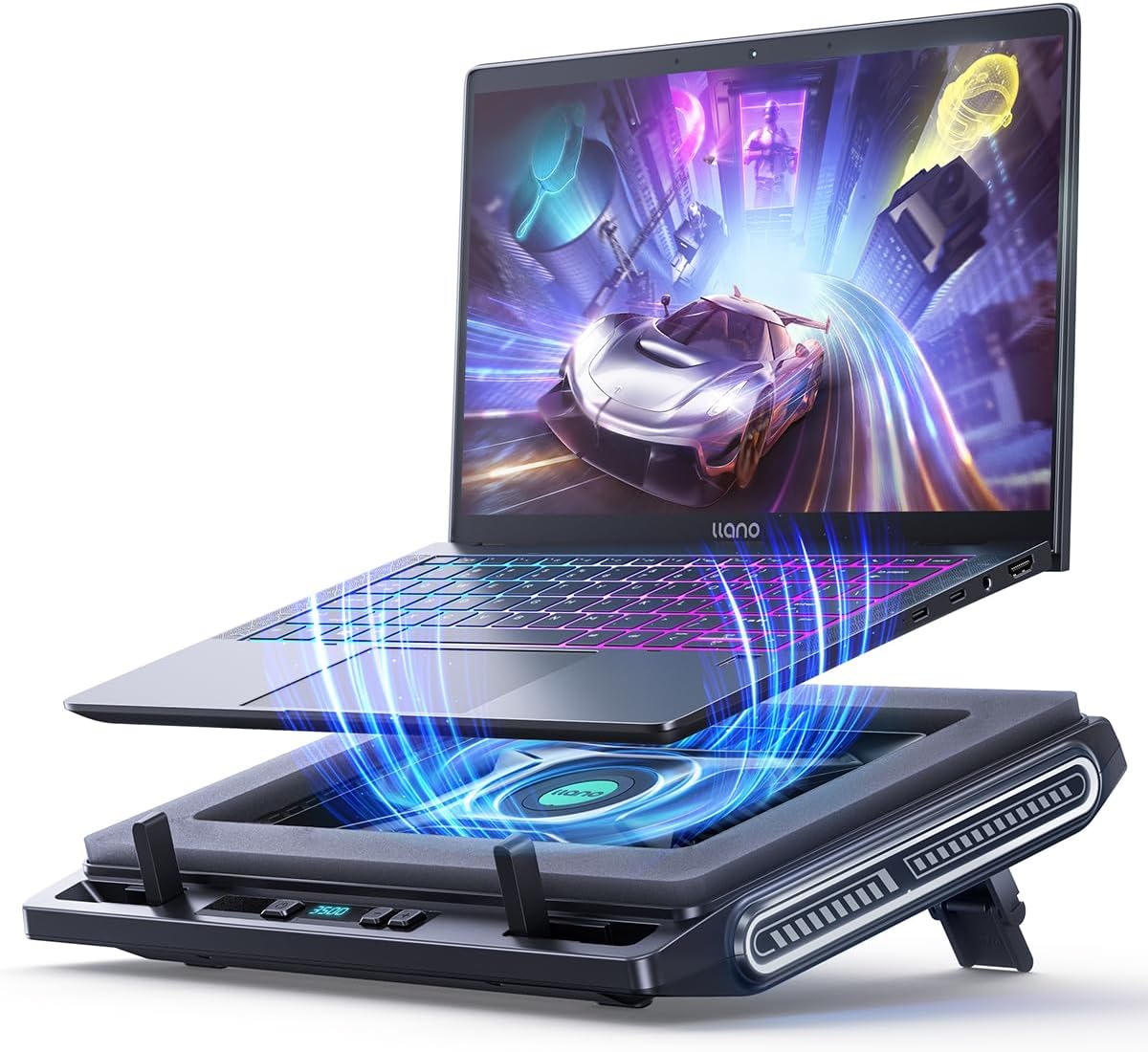
- Cooling Pads: These external stands with integrated fans are designed to blow cool air into the laptop’s intake vents. Their effectiveness varies widely based on design, fan quality, and how well their airflow aligns with the laptop’s vents. Look for pads with adjustable fan speeds and an ergonomic design.
- Headphones: High-quality gaming headphones, especially those with noise-canceling features, can effectively mask fan noise, allowing for a more immersive experience without resorting to aggressive thermal throttling.
- External Keyboard and Mouse: If the keyboard deck gets uncomfortably hot, using an external keyboard and mouse can move your hands away from the primary heat zones, enhancing comfort.
What to Look For When Buying: A Reviewer’s Perspective
When reviewing or purchasing a gaming laptop, don’t just look at the CPU and GPU specs. The cooling system is equally, if not more, important for sustained performance.
- Read Comprehensive Reviews: Look for reviews that specifically test thermal performance under sustained load (e.g., 30-60 minutes of gaming or synthetic benchmarks). Pay attention to actual CPU/GPU temperatures and fan noise levels (often measured in decibels, dB).
- Examine Cooling System Design: Does the laptop feature a vapor chamber? How many heat pipes? What’s the fan count and blade design? While hard to verify without disassembling, reputable reviews often provide internal shots.
- Manufacturer Reputation: Some brands/series are known for better thermal solutions (e.g., Lenovo Legion series, some ASUS ROG Strix/Scar models, certain MSI GE/GT series, higher-end Alienware).
- Software Control: A robust OEM control center with customizable fan curves and power profiles is a significant advantage, allowing you to tailor the laptop’s behavior to your needs.
- Listen to it (if possible): If buying in-store, ask to hear the laptop under load if possible. Fan noise character (whine vs. whoosh) can be subjective.
- Consider the Trade-offs: A thinner, lighter laptop will almost always have worse thermal performance and louder fans than a thicker, heavier one with the same internal components. Be realistic about your priorities.
The Future of Gaming Laptop Cooling
Innovation in thermal management for gaming laptops is ongoing, driven by the ever-increasing power of components and the demand for thinner form factors.
- Widespread Vapor Chambers & Liquid Metal: These premium cooling solutions will become more common across a wider range of gaming laptops, offering superior heat dissipation.
- External Liquid Cooling: Concepts like Alienware’s Graphics Amplifier or Razer’s Core X, which allow external GPUs, could evolve to include external liquid cooling solutions for the laptop’s internal components, effectively offloading heat dissipation.
- AI-Driven Thermal Management: More sophisticated AI algorithms could dynamically adjust power limits and fan curves in real-time, predicting workload changes and optimizing for the best balance of performance, temperature, and noise.
- Advanced Materials: Research into new heat-dissipating materials and phase-change materials could lead to even more efficient cooling solutions.
- More Efficient Components: Continuous improvements in CPU and GPU architecture will lead to better performance per watt, meaning less heat generated for the same computational power.
Conclusion
Gaming laptop fan noise and heat management are not merely technical specifications; they are critical determinants of the overall gaming experience and the longevity of your investment. The constant push for more power in ever-thinner form factors ensures that this challenge will persist. However, by understanding the underlying physics, appreciating the sophisticated engineering solutions, leveraging powerful software controls, and adopting smart user practices, gamers can effectively tame the roar and the radiator.
Ultimately, achieving the perfect balance is a personal journey. Some prefer absolute silence, even at the cost of a few frames, while others crave every last bit of performance, tolerating a louder machine. With the knowledge and tools available, every gaming laptop owner can fine-tune their portable battlestation to deliver an immersive, enjoyable, and sustainable gaming experience, ensuring that the only roar you hear is the one of victory, not your cooling fans.
