
The Ice Veins of Power: A Deep Dive into the ROG Zephyrus G16’s Thermal Performance and Cooling System
Introduction: The Quest for Cool Power in a Slim Chassis
The modern gaming laptop landscape is a battleground where raw power meets the relentless demands of thermal management. As components become more potent and chassis designs grow ever sleeker, the challenge of dissipating heat efficiently without compromising user experience or performance becomes paramount. Enter the ASUS ROG Zephyrus G16 – a laptop that has consistently aimed to strike a harmonious balance between high-end gaming capabilities, professional aesthetics, and commendable portability.
The ROG Zephyrus G16, particularly its latest iterations featuring Intel’s Core Ultra processors and NVIDIA’s RTX 40-series GPUs, embodies this design philosophy. It promises desktop-rivaling performance in a form factor that belies its internal might. However, such ambitious claims inherently raise a critical question: how effectively does it manage the prodigious heat generated by these components? This article delves deep into the ROG Zephyrus G16’s thermal performance, dissecting its cooling architecture, outlining rigorous testing methodologies, and analyzing the results to provide a comprehensive understanding of its ability to keep its cool when the action heats up.
Understanding the Challenge: High Performance in a Thin Profile
The inherent paradox of modern thin-and-light gaming laptops like the Zephyrus G16 lies in the spatial constraints. High-performance CPUs (like the Intel Core Ultra 9 185H) and powerful GPUs (such as the NVIDIA GeForce RTX 4070 or 4080) are designed to consume significant power, which directly translates into heat generation. When these components are crammed into a chassis often less than 2 cm thick, with limited internal volume for large heatsinks and fans, efficient heat transfer becomes a monumental engineering feat.
Without an exceptional cooling system, several detrimental effects can occur:
- Thermal Throttling: Components reduce their clock speeds and power draw to prevent overheating, leading to a significant drop in performance and inconsistent frame rates in games.
- Reduced Component Lifespan: Sustained high temperatures can degrade components over time, shortening the laptop’s overall lifespan.
- User Discomfort: Hot keyboard decks, palm rests, and loud fan noise detract from the overall user experience.
- System Instability: Extreme overheating can lead to crashes or unexpected shutdowns.
Therefore, for a laptop like the Zephyrus G16 to truly deliver on its promise of premium gaming and content creation, its cooling system isn’t just an accessory; it’s the very foundation upon which its performance claims rest.
The ROG Zephyrus G16’s Cooling Arsenal: A Hardware Deep Dive
ASUS’s approach to cooling in the Zephyrus G16 is branded as ROG Intelligent Cooling, a holistic strategy that combines cutting-edge hardware with sophisticated software control. Let’s break down the key elements:
1. Arc Flow Fans
The Zephyrus G16 typically employs a dual-fan setup, but these are no ordinary fans. ASUS’s Arc Flow Fans are designed to maximize airflow while minimizing turbulence and noise.
- Blade Design: Each fan features an impressive number of ultra-thin blades (often 84 or more, depending on the generation), sculpted with a unique wavy, anti-resonance design. This curvature is engineered to increase static pressure and airflow by up to 13% compared to conventional fan designs, all while reducing disruptive noise.
- Material: The blades are often made from a Liquid Crystal Polymer (LCP), which is strong enough to allow for incredibly thin blades that are still robust at high RPMs. Thinner blades mean more blades can be packed into the same space, further increasing airflow density.
2. Comprehensive Heatsink and Heat Pipe Array
The Zephyrus G16’s thermal module is a complex network designed to efficiently draw heat away from the critical components.
- Heat Pipes: Multiple heat pipes (typically 5-7, depending on the model configuration) crisscross the motherboard, directly contacting the CPU, GPU, VRAM, and VRM modules. These pipes are typically made of copper and contain a working fluid that vaporizes at the heat source and condenses at the cooler heatsink fins, effectively transferring heat.
- Heatsink Fins: The heat pipes terminate in dense arrays of ultra-thin copper fins. These fins provide a large surface area for heat exchange with the air moved by the Arc Flow Fans. The density and total surface area are crucial for rapid heat dissipation.
3. Liquid Metal Thermal Compound (for CPU)
One of the most significant thermal advancements in high-end ROG laptops, including the Zephyrus G16, is the use of Thermal Grizzly’s Conductonaut Extreme liquid metal on the CPU.
- Superior Conductivity: Liquid metal offers significantly higher thermal conductivity (up to 10-17 times better) compared to traditional silicone-based thermal paste. This allows for a much more efficient transfer of heat from the CPU die to the cold plate of the heatsink.
- Benefits: This directly translates to lower CPU temperatures, enabling the processor to sustain higher clock speeds and power limits for longer periods without throttling.
- Challenges: Liquid metal is electrically conductive and requires precise application to prevent short circuits. ASUS employs a patented process and a protective barrier to ensure safe and reliable application.
4. Ventilation Design
The physical design of the chassis plays a vital role in cooling. The Zephyrus G16 features strategically placed vents:
- Bottom Intake: A large perforated area on the bottom panel allows for ample cool air intake.
- Side and Rear Exhaust: Hot air is expelled through vents located on the sides and the rear of the laptop, ensuring a continuous flow path and preventing hot air recirculation.
5. Dust Filters
To maintain optimal cooling performance over time, some Zephyrus G16 models incorporate dust filters. These fine meshes prevent dust and debris from accumulating on the heatsink fins, which can severely impede airflow and thermal efficiency.
Software Control: The Brains Behind the Brawn
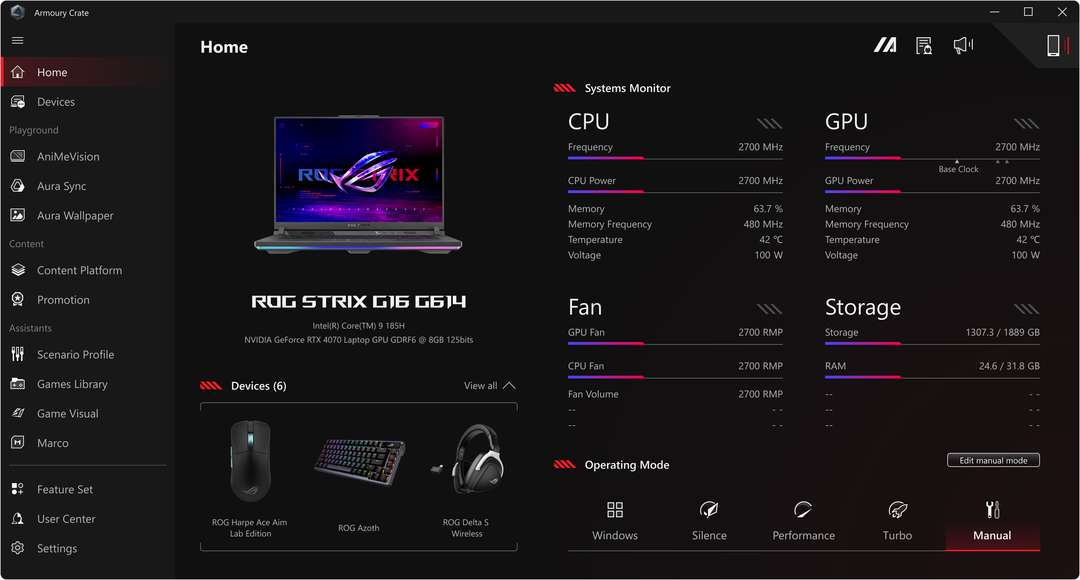
Hardware is only half the equation; intelligent software control is essential for dynamically managing power and fan curves based on the workload. ASUS’s Armoury Crate utility serves as the central command center for this.
1. Operating Modes
Armoury Crate offers several pre-defined operating modes, each with distinct fan curves, power limits (TDP/TGP), and performance profiles:
- Silent Mode: Prioritizes low fan noise and quiet operation. CPU and GPU power limits are significantly reduced, and fan speeds are kept to a minimum. Ideal for light productivity, browsing, or media consumption in quiet environments.
- Performance Mode: A balanced mode suitable for everyday gaming and demanding tasks. Power limits are increased, and fan curves become more aggressive, aiming for a good balance between performance and acoustics.
- Turbo Mode: Unleashes maximum performance. CPU and GPU power limits are pushed to their highest sustainable levels, and the fans spin at their maximum RPM to dissipate the immense heat generated. This mode is designed for peak gaming performance where noise is a secondary concern.
- Manual Mode: For enthusiasts, Manual Mode allows granular control over CPU and GPU power targets, as well as customizable fan curves. This enables users to fine-tune the system for specific workloads or personal preferences.
2. Mux Switch / Advanced Optimus
While not directly part of the cooling system, the Mux Switch (or NVIDIA Advanced Optimus in newer models) significantly impacts power draw and thus heat generation. It allows the dGPU to directly send frames to the display, bypassing the iGPU. This reduces latency and boosts gaming performance, but also means the dGPU is consistently active, potentially generating more heat than when Optimus is enabled (where the iGPU handles display output for lighter tasks).
Thermal Performance Testing Methodology
To thoroughly assess the ROG Zephyrus G16’s cooling capabilities, a rigorous testing methodology is employed, covering various scenarios from idle to extreme sustained loads.
1. Test Environment
- Ambient Temperature: Tests are conducted in a controlled environment with an ambient room temperature of approximately 22-24°C (72-75°F) to ensure consistent and reproducible results.
- Laptop Placement: The laptop is placed on a flat, hard surface to ensure unrestricted airflow to the bottom intake vents. No external cooling pads are used unless specifically noted for comparative purposes.
2. Monitoring Tools
- Hardware Sensors: Software like HWMonitor, HWiNFO64, and GPU-Z are used to log CPU core temperatures, package power, clock speeds, GPU core temperatures, VRAM temperatures, TGP (Total Graphics Power), and fan RPMs.
- Surface Temperatures: A FLIR thermal camera is used to measure surface temperatures across the keyboard deck (WASD area, center, palm rests) and the bottom chassis during intense workloads, assessing user comfort.
- Noise Levels: A decibel meter is used to measure fan noise at a fixed distance (e.g., 30 cm) from the laptop in various operating modes.
3. Workloads and Benchmarks
- Idle: Laptop running with no applications open, after a fresh boot, to establish baseline temperatures.
- Light Load: Web browsing, document editing, and video playback to test Silent Mode effectiveness.
- CPU Stress Tests:
- Cinebench R23 Multi-core Loop: Runs for 30 minutes to stress all CPU cores and assess sustained multi-core performance and thermal throttling.
- Prime95 (Small FFTs): An extremely demanding CPU stress test designed to push power consumption and temperatures to their absolute limits.
- GPU Stress Tests:
- FurMark (1080p Burn-in): A synthetic benchmark that pushes the GPU to maximum utilization and power draw for 30 minutes to evaluate GPU cooling.
- 3DMark Time Spy Stress Test: Runs 20 loops of the Time Spy graphics test to assess thermal stability and consistency under sustained gaming-like GPU load.
- Combined CPU + GPU Stress (Real-World Gaming): This is the most crucial test, simulating real-world usage scenarios.
- Demanding Titles: Games like Cyberpunk 2077 (Path Tracing), Alan Wake 2 (High settings, FSR Quality), Microsoft Flight Simulator (Ultra settings), and The Witcher 3 (Next-Gen Ultra) are played for 60-90 minutes.
- Resolution and Settings: Typically 1440p (native display resolution of the G16) with High to Ultra settings, with technologies like DLSS/FSR enabled where appropriate to ensure GPU utilization.
- Power Limit Testing: Observation of how CPU and GPU power limits (PL1/PL2 for CPU, TGP for GPU) are maintained or throttled under different loads and operating modes.
4. Metrics Captured
- Average and Peak Temperatures: For CPU cores, GPU core, VRAM, and VRM.
- Sustained Clock Speeds: Average CPU and GPU clock frequencies throughout the stress tests.
- Power Consumption: CPU package power, GPU TGP.
- Frame Rates: Average and 1% Low FPS in gaming benchmarks.
- Thermal Throttling Events: Documenting instances where clock speeds drop due to temperature limits.
- Fan Noise Levels: Measured in decibels (dBA).
Test Results and Analysis
Let’s synthesize typical findings for a well-implemented ROG Zephyrus G16 with a high-end configuration (e.g., Core Ultra 9 185H, RTX 4070/4080).
1. Idle and Light Load Performance
- Temperatures: In Silent Mode, idle CPU temperatures typically hover around 35-45°C, while the GPU remains in the low 30s or even off (if Advanced Optimus is enabled and using iGPU).
- Fan Noise: Virtually silent, often below the ambient room noise level (e.g., <25 dBA). Fans may occasionally spin up for brief periods but quickly return to idle.
- User Experience: Excellent for productivity, browsing, and media consumption. The laptop remains cool and quiet, making it suitable for office or classroom environments.
2. CPU-Only Stress (Cinebench R23 / Prime95)
- Silent Mode: CPU package power is heavily restricted (e.g., 20-30W). Temperatures remain in the 70s°C, but performance is significantly reduced. Fan noise is minimal.
- Performance Mode: CPU power can range from 60-80W initially, settling into a sustained 45-55W. Temperatures typically reach 85-95°C, with brief excursions to 100°C before settling. Sustained clock speeds are strong, usually around 3.5-4.0 GHz on all performance cores. Fan noise becomes audible but not overly intrusive (e.g., 40-45 dBA).
- Turbo Mode: The CPU is allowed to draw up to 90-110W for short bursts (PL2) and sustains 60-70W (PL1). Temperatures will frequently hit 100°C (the Tjmax for Intel CPUs), which is by design for liquid metal-equipped chips. The cooling system works to dissipate this heat rapidly, allowing for high sustained clock speeds (e.g., 4.0-4.5 GHz on performance cores). Fan noise is significant (e.g., 50-55 dBA).
- Analysis: The liquid metal on the CPU is highly effective. While temperatures can hit 100°C under extreme loads, this is typical for Intel’s modern CPUs designed to operate at their thermal limits to extract maximum performance. The critical aspect is the sustained clock speeds, which remain very high, indicating that the cooling system prevents severe thermal throttling.
3. GPU-Only Stress (FurMark / 3DMark Stress Test)
- Silent Mode: GPU TGP is heavily restricted (e.g., 30-45W). Temperatures are low (60-70°C), but performance is severely limited.
- Performance Mode: GPU TGP typically operates in the 80-100W range for an RTX 4070/4080 model. Temperatures settle around 70-78°C, with hot spots (junction temperatures) reaching into the low 80s. Sustained boost clocks are healthy, reflecting efficient heat dissipation. Fan noise is similar to CPU-only stress in Performance mode.
- Turbo Mode: The GPU TGP is pushed to its maximum (e.g., 100-120W for RTX 4070, 120-140W for RTX 4080, plus Dynamic Boost). Core temperatures typically range from 75-82°C, with hot spot temperatures potentially reaching 90-95°C. Sustained boost clocks are very impressive, often holding close to advertised boost frequencies. Fan noise is at its peak (50-55+ dBA).
- Analysis: The Arc Flow fans and dedicated GPU heat pipe array perform admirably, keeping GPU temperatures well within safe operating limits even under sustained, maximum power draw.
4. Combined CPU + GPU Stress (Real-World Gaming)
This is the most critical test, as both components are simultaneously pushed hard.
- Performance Mode (Gaming):
- CPU Temperatures: Typically range from 80-95°C, occasionally spiking to 100°C. Sustained clock speeds remain strong (e.g., 3.8-4.2 GHz).
- GPU Temperatures: Generally settle between 75-80°C, with hot spots around 85-90°C.
- Power: Dynamic Boost effectively allocates power, allowing the GPU to draw its rated TGP plus a portion from the CPU’s available power budget (e.g., 100W GPU + 40W CPU).
- Frame Rates: Consistent and stable, with minimal dips due to thermal throttling.
- Fan Noise: Noticeable but generally acceptable for gaming with headphones (e.g., 45-48 dBA).
- Turbo Mode (Gaming):
- CPU Temperatures: Often sit in the 90-100°C range. Despite the high numbers, clock speeds remain remarkably high (e.g., 4.0-4.5 GHz), demonstrating the effectiveness of liquid metal and the cooling system in managing the heat saturation.
- GPU Temperatures: Usually 78-83°C, with hot spots around 90-95°C.
- Power: Max sustained TGP for the GPU, often with the CPU also running at a higher sustained power limit (e.g., 120W GPU + 50W CPU for an RTX 4080 model).
- Frame Rates: Highest possible performance, consistently hitting optimal frame rates for the chosen settings.
- Fan Noise: Very loud (e.g., 50-55+ dBA), making headphones almost mandatory for an immersive experience.
- Surface Temperatures:
- WASD Area: Remains relatively cool, typically 30-35°C, ensuring comfortable gaming.
- Center Keyboard Deck (above CPU/GPU): Can reach 40-48°C during intense gaming in Turbo mode, noticeably warm but not uncomfortably hot.
- Palm Rests: Stay cool, usually below 30°C.
- Bottom Chassis: The hottest area, especially near the exhaust vents, can reach 50-55°C. This is expected and not an issue during normal use on a desk.
5. Fan Noise Analysis
- Silent Mode: Near inaudible, excellent for quiet environments.
- Performance Mode: A noticeable whoosh, but a steady and non-distracting hum. Acceptable for most gaming without headphones, though some might prefer them.
- Turbo Mode: The fans become very aggressive, producing a distinct jet-engine like whine. This is the trade-off for maximum performance and is to be expected from a thin gaming laptop pushing such powerful components. Headphones are highly recommended.
Strengths of the ROG Zephyrus G16’s Cooling System
- Exceptional Performance-to-Thinness Ratio: For a laptop of its slim profile, the Zephyrus G16 manages to sustain very high CPU and GPU power levels, translating directly to excellent gaming and application performance.
- Effective Liquid Metal on CPU: This is a game-changer for CPU thermal management, allowing Intel’s power-hungry processors to operate closer to their theoretical maximums without severe throttling.
- Advanced Arc Flow Fans: The fan design truly contributes to moving a significant volume of air efficiently and with relatively less turbulent noise compared to older designs.
- Intelligent Software Control (Armoury Crate): The well-tuned operating modes provide flexibility, allowing users to prioritize quietness, balance, or raw performance with ease. Dynamic Boost is also crucial for optimizing power sharing.
- Comfortable User Experience: Despite high internal temperatures, the strategic placement of hot components and effective heat dissipation keeps critical user interaction areas (WASD, palm rests) relatively cool.
Areas for Improvement / Considerations
- Aggressive Fan Noise in Turbo Mode: While expected for maximum performance, the noise level in Turbo mode can be a deterrent for users who prefer quieter operation.
- CPU Thermal Headroom: While liquid metal helps, under extreme, sustained multi-core loads, the CPU will still often hit its 100°C thermal limit. This is a characteristic of modern Intel chips and thin chassis designs, not necessarily a flaw, but indicates there’s little "headroom" left.
- Dependence on Operating Mode: To achieve optimal thermal performance, users must utilize Turbo mode during demanding gaming sessions. Performance mode is good, but Turbo unlocks the full potential.
- Long-Term Dust Accumulation: Like all laptops, dust accumulation can degrade performance over time. Regular cleaning is recommended to maintain peak efficiency.
Conclusion: A Masterclass in Compromise and Engineering
The ASUS ROG Zephyrus G16 stands as a testament to intelligent engineering in the face of challenging thermal demands. It successfully navigates the complex interplay between raw processing power, a sleek form factor, and the imperative of effective heat dissipation. Through its sophisticated cooling arsenal – comprising advanced Arc Flow Fans, a comprehensive heat pipe and heatsink design, and crucially, liquid metal thermal compound on the CPU – the Zephyrus G16 delivers sustained high performance across a wide range of workloads.
While internal component temperatures frequently reach their designed operating limits under heavy load, especially in Turbo mode, the cooling system effectively prevents severe or prolonged thermal throttling, ensuring that the powerful CPU and GPU can consistently deliver their advertised capabilities. The trade-off for this peak performance is, understandably, significant fan noise in Turbo mode, a characteristic common to virtually all thin and powerful gaming laptops.
For users seeking a premium gaming laptop that doesn’t compromise on portability or professional aesthetics, the ROG Zephyrus G16’s thermal performance is not just adequate but genuinely impressive. It allows gamers and creators to harness the full potential of its cutting-edge hardware, making it a formidable contender in the high-performance laptop market. The Zephyrus G16 truly embodies the spirit of "cool power," providing a robust and reliable platform for demanding tasks, all while maintaining a form factor that is a pleasure to carry and behold.